
Navigation and download
Move between messages, choose device views and export your emails.
Navigation
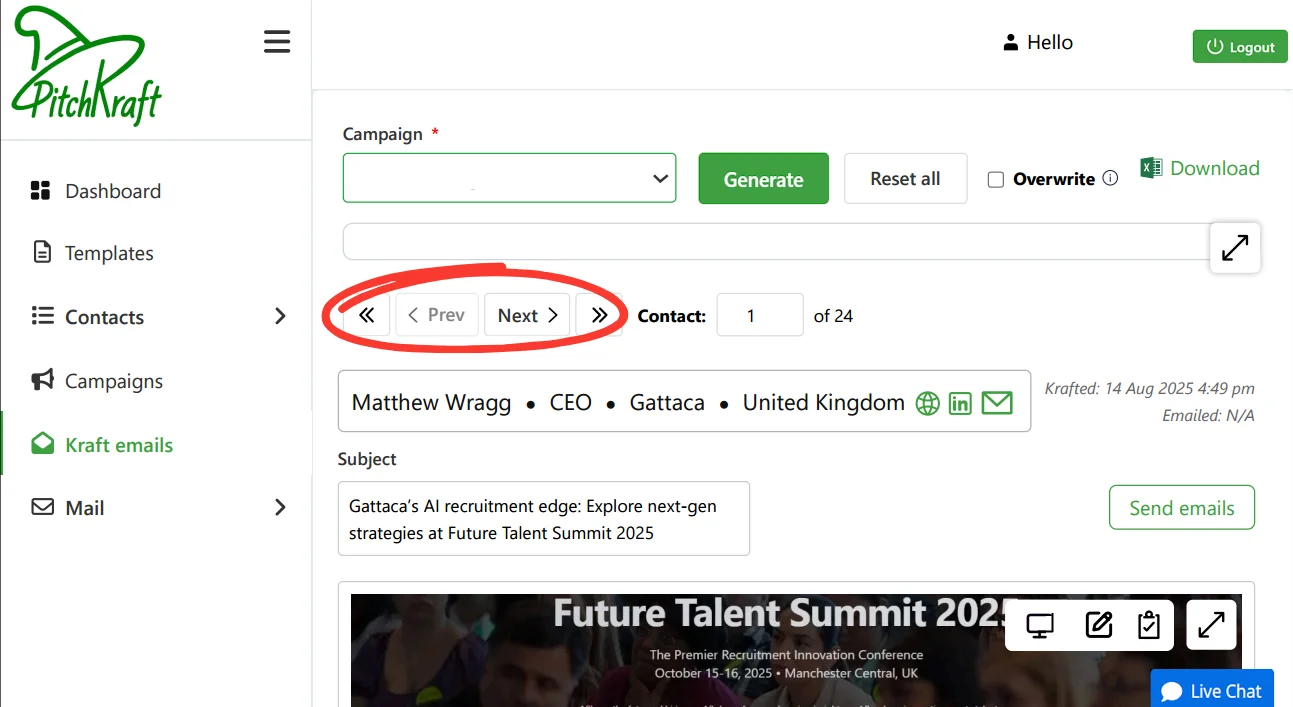
Navigate between contacts using the navigation buttons. You can fast forward by typing a number in the contact box — type 56 to go to the 56th contact. The contact details change as you move along, and as the emails are generated, showing the contact’s name, job title, company, location, company website, contact’s LinkedIn, and email address.
Viewing options
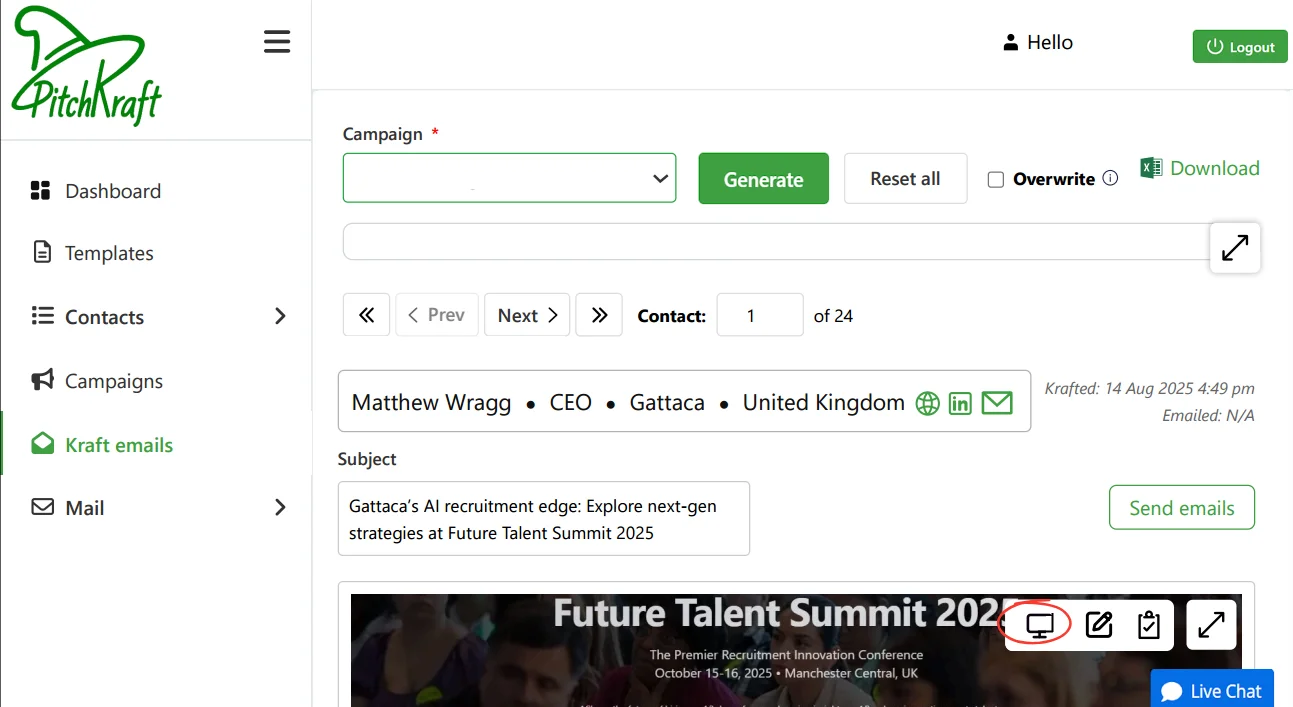
See how the emails will look on a mobile device, a tablet, or a laptop/desktop by selecting the relevant button located at the top right of the email.
Download the emails
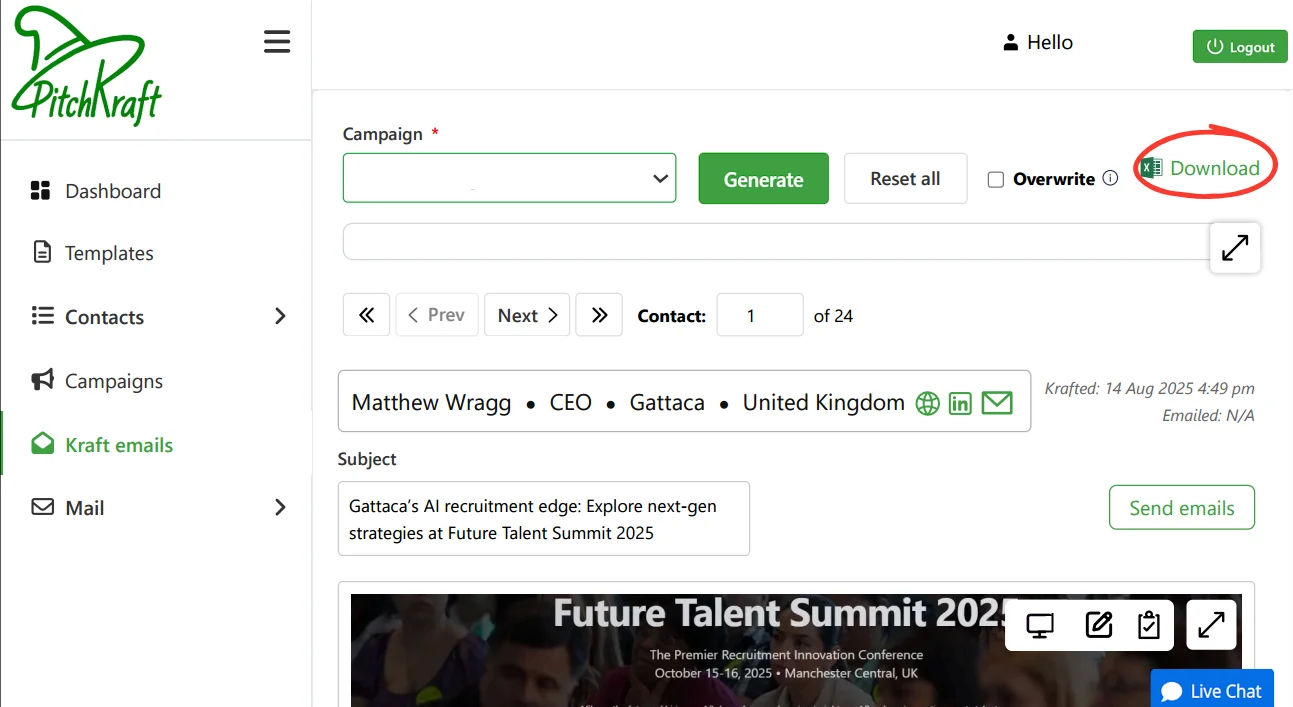
To download all the generated emails into a spreadsheet (to use in your CRM or email software), along with subject and pre-headers, click on the download button. You can also copy the generated email into the clipboard. This button is located on the top right of the email area.
Tips and tricks
Jump quickly to any contact by typing its number instead of clicking through one by one. Always preview emails in mobile view first if it reads well there, it will usually look great everywhere.
Other Kraft Emails topics: Email generation | Visible evidence of sources | Kraft tips
