
Email generation
Generate, review and edit personalised emails for every contact.
Kraft Emails
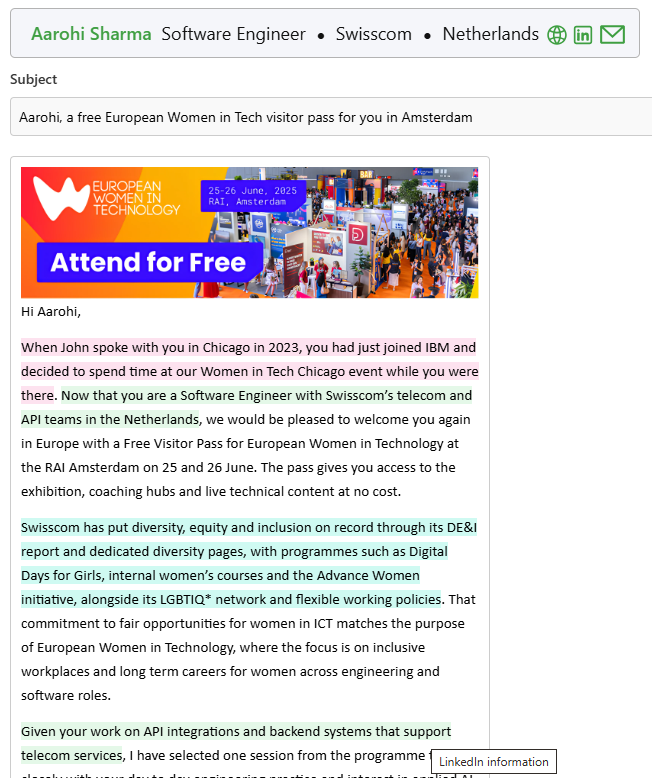
Now we can create the subject and body of actual emails, in bulk. Here we can view the generated hyper-personalized emails created using the chosen blueprint for your campaign and for the list/segment of contacts you have chosen for your campaign. You can also move between the emails, view the emails in mobile/tablet/desktop view, regenerate and edit individual emails, overwrite emails, and download the emails into a spreadsheet to import into your mailing software or CRM.
If you prefer, use PitchKraft to send the emails. Within the kraft emails section you can send the emails, an individual email or all, one-by-one. You can move to the mail section of PitchKraft if you prefer to set up a schedule to send the emails.
Generate emails
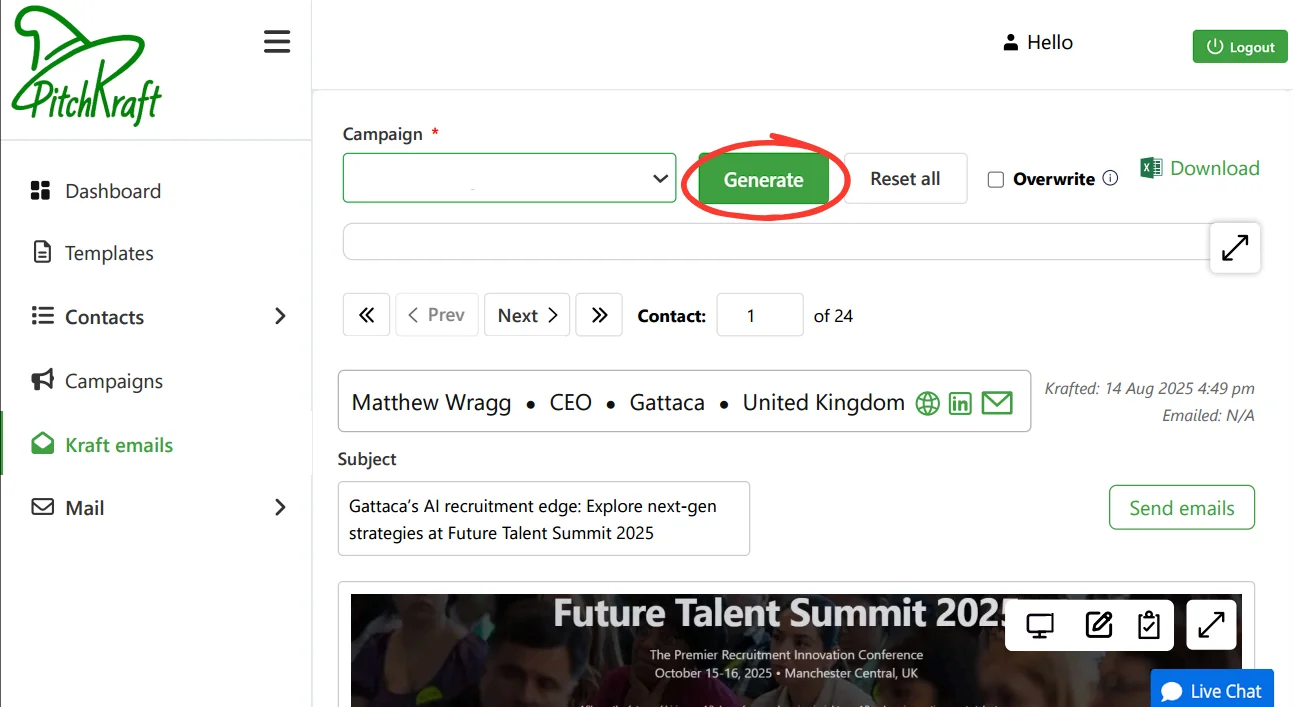
Click on the generate button to start creating the emails. If you want to skip the contacts that have already had emails created then don’t check the Overwrite check box. If you do check that box then all emails will be regenerated from the contact that is currently showing. All the emails, body and subject, are automatically saved. You will see a running commentary in the output box, showing which contact PitchKraft is working on. As the email is generated, the krafted label will change to show the date and time the email was generated.
Change the generated email
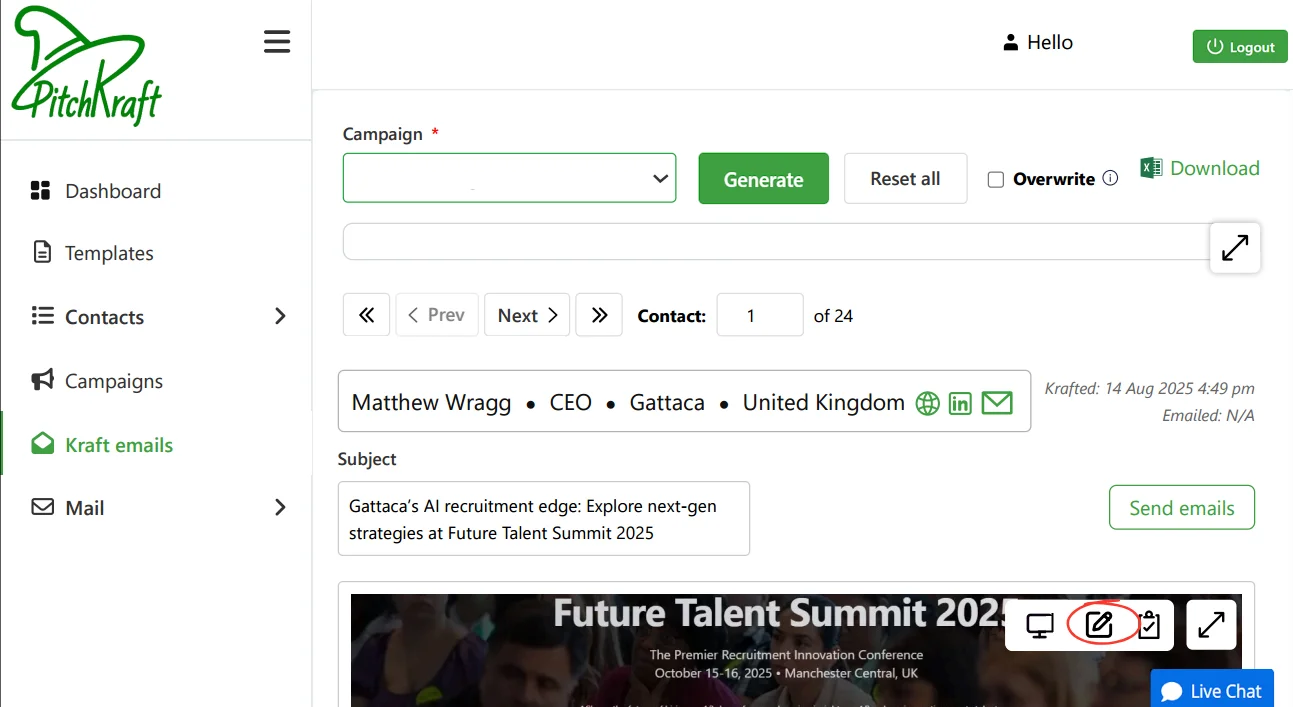
If you would like to regenerate an individual email or edit it manually, then click on the relevant button located at the top right of the email.
Stopping email generation
If you click on the Stop button, then the process of email generation will stop after completing the email that is currently being created. If you close the browser, the emails will also stop being generated.
Reviewing generated emails
As the emails are being created, you can review the output. You can use the navigation tools to move through the personalized emails and this will not interrupt the process. When a new email is created, it will navigate back to that email.
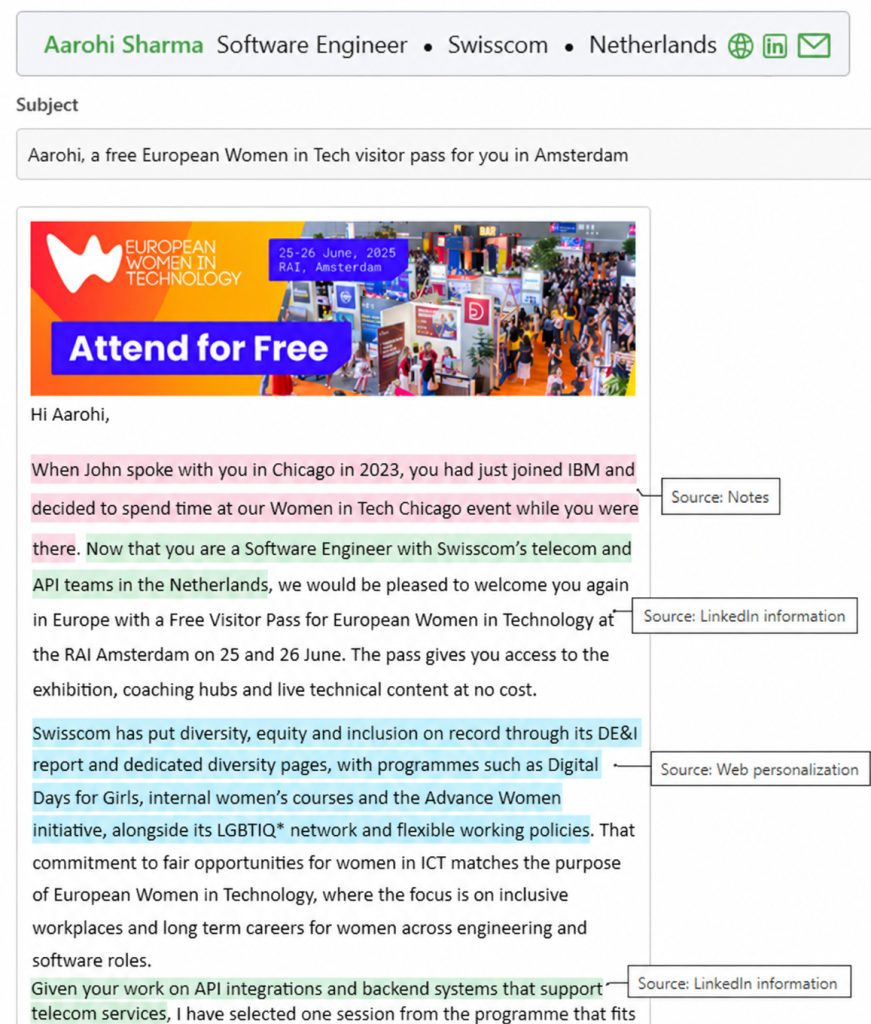
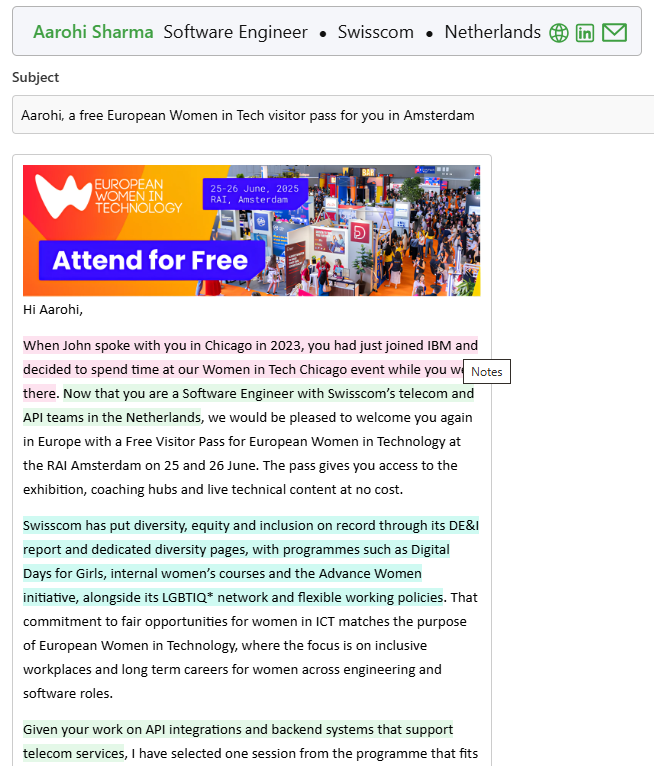
You can also see the source of the personalization came from, whether it was from internet research about the prospect, from notes about the prospect in the CRM, from emails to and from the prospect, from your company knowledge base (case studies etc) or from the prospect’s LinkedIn information.
Tips and tricks
Use the overwrite option carefully leave it off to preserve reviewed emails, and enable it only when you want a full refresh. Always skim a few generated emails during the run to catch tone or hook issues early.
Other Kraft Emails topics: Navigation and download | Visible evidence of sources | Kraft tips
