
When creating custom fields, bear in mind that you can use these as filter criteria when you create ‘views’. You can then use views in email campaigns.
Home » Support Contact
Import, organize and enrich your contacts with powerful CRM tools, flexible segmentation and custom attributes for smarter, more personalized campaigns.
Before sending any emails, you need to tell PitchKraft who to send them to. Typically, you’ll have a spreadsheet or CSV file of prospects or clients. You might want to export that from your CRM, if you use one. PitchKraft makes it easy to import that list.
The spreadsheet or CSV file should have a header row which shows the column/field names.
What columns/fields can you import? The only essential columns are Full Name and Email address. However, the more columns you provide, the more information PitchKraft has to create hyper-personalized emails.
Including more fields can help the AI personalize better. Other columns that are very useful are the Job Title of the contact, Company (company name that the contact works at), Location (location of the contact), LinkedIn URL (LinkedIn profile page of the contact), and Company website (website of the company).
You will now see your list in the Lists grid. Each contact list shows the number of contacts, a default folder, creation date, and the description (if you added one). You can click on the list name to view the contacts or click on the Action icon to view, edit, download the data to your device as a spreadsheet, or delete it
Why would you want to download the data to your device as a spreadsheet when you have just imported it?
You may have processed the data in Kraft Emails so data such as Email subject and Email body will be populated and you might want to import that back into your CRM.
Include as many relevant contact fields as possible, such as job title, company, and LinkedIn URL, to unlock deeper personalization. Always double-check column mapping during import to avoid cleanup later and ensure higher-quality emails.
If you need more B2B contact data just get in touch. We can provide guaranteed contact data for you to use within PitchKraft (additional charges apply).
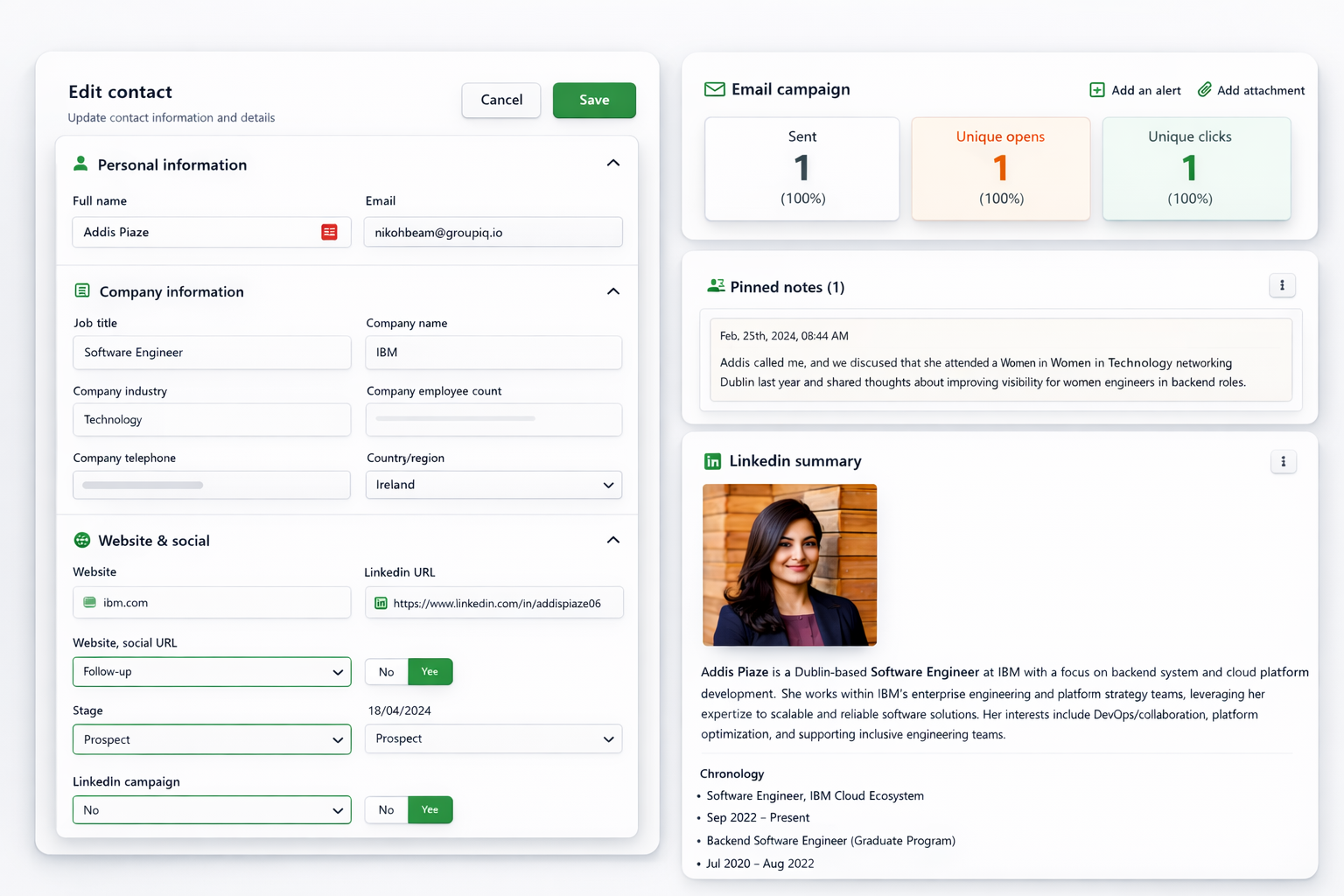
PitchKraft has full CRM functionality, so when you have sent your email campaigns you can progress the good work you have done with individual contacts. Set custom fields to fit your workflow, add notes (which can be used to personalize outreach in future email campaigns), add LinkedIn information (which also can be used to personalize emails), track emails, view all history and lots more.
When creating custom fields, bear in mind that you can use these as filter criteria when you create ‘views’. You can then use views in email campaigns.
Views are very useful ways of filtering your contacts using criteria you set. The criteria can include system fields such as ‘country’, ’email opened date’, ‘job title’ etc and you can also include any of your custom attributes that you may have added such as ‘lead status’.
Views are dynamic so any contacts that change and then fall into the criteria you have set for a particular view will automatically show in that view the next time you open the view.
You can use views in emails campaigns to send to, for instance, contacts that opened your last email campaign within a set date range, to send emails to a part of your list that is in a certain country etc. The options are unlimited.
You can create simple views with a single criteria or create complex views based on Boolean logic and groupings. if you need any help, just shout. Live chat is bottom right, as always.
Use views to see your contacts at different stages of the sales progression. If you have set a ‘custom attribute’ of ‘Status’ then you could create a view called ‘Strong follow-up’ which has all your contacts with Status of ‘Strong follow-up.
If you have a large contact list and want to target specific subsets (e.g., only clients in the Tech industry, or only a certain job function), you can create segments. Segments are like ‘views’ but they are static. Views are dynamic. This means that the contacts within the segment never change unless you add or remove them, whilst contacts in views change if the criteria of any contacts change so they now fall into that view.
Use the Search box to filter by, for instance, ‘CEO’. Click the top check box to select all the filtered contacts (or select individually) then click on Create segment, name your segment (e.g., “All CEOs”), add an optional description of the segment and click Save segment — This segment will now appear in the Segments tab and behaves just like a list.
Segments are optional but powerful for targeting. If you don’t see a segment feature you need, you can also split your contacts into multiple files and upload them separately as needed.
Use segments to run focused campaigns with sharper messaging and higher response rates. Save frequently used filters as segments so you can reuse them instantly without re-uploading contact lists.
Not every business wants to record the same type of data as the next business. That’s where ‘custom attributes’ come in. You can create as many of these data fields as you like.
Examples might be ‘Contact status’ and you might want to have a pick list of settings to choose from such as ‘New prospect’. ‘Warm’, ‘Strong follow-up’, ‘Closed-won’ etc. Custom attributes allow you to record sales progression how you work now.
You can use customer attributes in individual contact pages and create views based on the custom attributes to use in email campaigns and to use in your reviews.
Custom attributes come in all types of data types such as text, picklist (aka dropdown), date, Boolean (yes/no), long text and number.
Use custom attributes to create views to use in your daily/weekly/monthly reviews. Create views such as ‘Follow-ups’, ‘Closed’, ‘Invoices outstanding’. ‘Prospect source’ etc.
Get in touch
24/7/365 help desk support comes as standard. We know…this is not normal!

support@pitchkraft.ai

London: +44 (0) 207 660 4243
New York: +1 (0) 315 400 2402
