
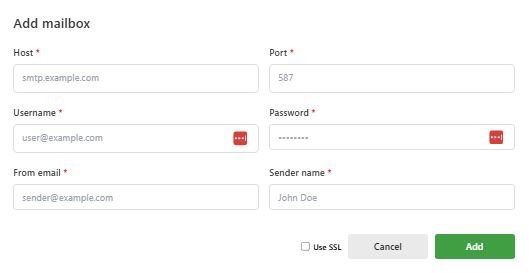
1. Host (mail server)
This is the address of the service that sends your emails.
Example: smtp.gmail.com, smtp.office365.com, or mail.yourdomain.com.
2. Port
Common options:
- 587 – Most common, works with TLS/STARTTLS.
- 587 – Most common, works with TLS/STARTTLS.
- 25 – Standard SMTP (rarely used, often blocked).
3. Username
Usually your full email address.
Example: user@yourdomain.com.
4. Password
The password for your email account.
Some providers (e.g., Gmail, Outlook) may require an App Password instead of your normal one.
5. From email address
The email address that others will see as the sender.
This normally matches the email address you entered in the ‘Username’.
Example: sender@yourdomain.com.
6. Sender name
The name of the person that sends the emails. The emails recipients will see that name. Most use their own name.
7. Choose encryption (use SSL)
Tick this if your provider requires SSL (usually with port 465).
Leave unticked if using STARTTLS (usually with port 587).
8. Click Add
After completing the fields, click the green Add button.
The system will test the details you have added. If successful, your mailbox will send an OTP to the email address which you have set up. This is very important to prevent someone else adding your email address and sending emails on your behalf. Go to your email, find the OTP and enter it. You are now ready to send emails.
BCC email management
If you would like to receive a copy of emails that are sent out, then use the BCC function wherever you send emails. You can create multiple BCC email addresses by simply entering the email address in the BCC email management section.
