
You can send individual emails from the ‘Kraft emails’ section or create timed schedules by going to Mail → Schedules.
To create a schedule, click on ‘create schedule’.
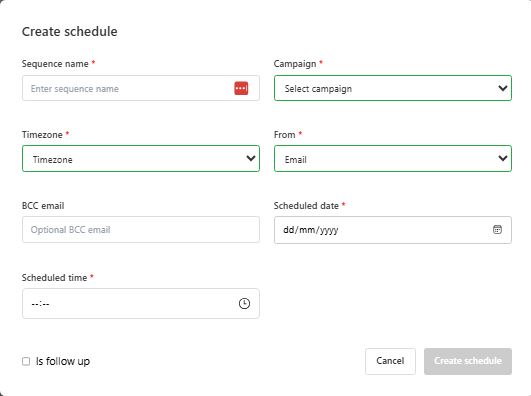
1 – Sequence name: give the schedule (also known as a sequence) a name.
2 – Campaign: select the campaign you wish to send emails from.
3 – From: choose mailbox to use to send the emails.
4 – BCC email: add an email address to receive copies of the emails (optional).
5 – Timezone: choose the timezone that the ‘Scheduled time’ will use.
6 – Scheduled date: select the date you wish to send the emails on
7 – Scheduled time: select the date you wish to send the emails on
The schedule will be saved and you can edit or delete schedules anytime.
Once the send is triggered (at the scheduled date and time), PitchKraft takes each personalized email for that campaign and sends it via your chosen mailbox.
Because PitchKraft uses your mailbox, any sending limits are those of your provider. Typical limits are:
- Gmail standard accounts: ~500 emails per day.
- Google workspace (GSuite) accounts: ~2,000 emails per day.
- Office 365: ~10,000 per day (varies by plan).
- SMTP servers (custom): depends on your server settings.
If your campaign exceeds these, then the server might start rejecting sends after the limit is hit.
recommendation: If you have more emails than your daily limit, use multiple mailboxes or split the send over multiple days. It is also advisable to warm up your email addresses (contact us to learn more).
recommendation: If you have more emails than your daily limit, use multiple mailboxes or split the send over multiple days. It is also advisable to warm up your email addresses (contact us to learn more).
Since emails are coming from your address, any replies from recipients will go directly to your email inbox (not into PitchKraft). That’s by design. You correspond with them normally.
