
Mail Dashboard
Dashboard
After your campaign emails have been sent, the dashboard becomes your command center for monitoring engagement and results. These analytics let you gauge the effectiveness of your outreach and can guide your next steps, like who to follow up with.
Accessing the dashboard
Click on dashboard in the left menu and then select one of your email campaigns to see metrics. By default, the statistics will show for all dates for that campaign unless you filter using the start date and/or the end date controls.
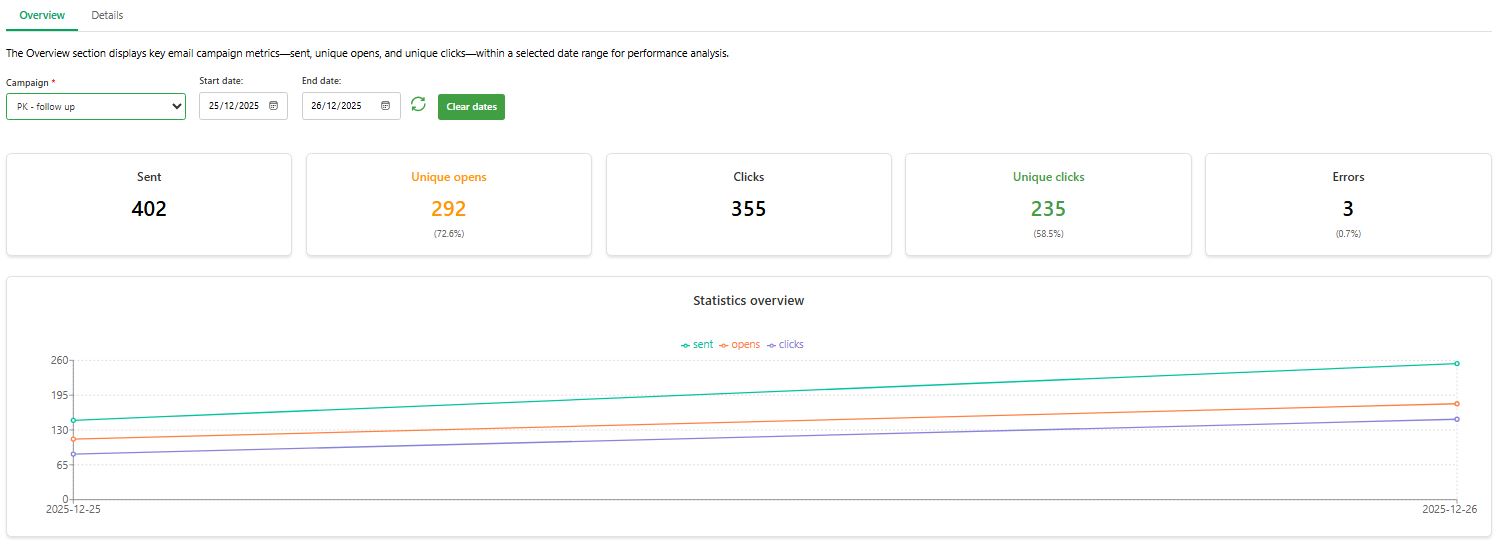
- Sent: total number of emails successfully sent (for the time frame or campaign currently viewed).
- Unique Opens: the percentage (and raw number) of sent emails that were opened at least once by recipients. Example: “Open Rate: 52% (182/350)”.
- Clicks and Unique Clicks the recipients who clicked a link in the email. Example: “Click Rate: 10% (35/350)”. This counts unique clicks (each person counted once even if they clicked multiple times).
Don't be fooled
PitchKraft gets higher rates of opens and clicks. Of that there is no doubt. Beware other platforms that show high opens and clicks because they haven’t taken into account bots that now routinely open and click emails. Apple started it with their Apple Privacy Protection (APP) that opens and clicks all emails before the recipient has even seen your email, whether it sits in the inbox or not. PitchKraft allows you to filter the results with its ‘Exclude bots’ option in the Mail dashboard. Read more at: Why Email Opens and Clicks Can’t Be Trusted.
- High interest contacts (opened many times or clicked): prioritize reaching out to them with a follow-up. Perhaps give them a call, use the PitchKraft LinkedIn summary of the email to use in a LinkedIn message or contact request, or send a shorter follow-up email with the full email trail, right from within PitchKraft.
- Moderate interest (opened once, no click): They read it but didn’t act. Maybe they’re interested but busy. Consider a follow-up in a week.
- No interest yet (no open): It’s possible they ignored it or it went unseen. You could try a different approach in a follow-up.
- Tracking conversions: If your email links to a sign-up page or something with conversion, you should see those conversions in your own system (like webinar sign-ups). Match those against who clicked to gauge conversion rate.
Tips and tricks
Use the Dashboard to spot high-intent contacts quickly. Prioritize follow-ups based on opens and clicks, test new subject lines for non-openers, and let engagement data guide smarter next steps.
Switching to the Details tab will give you granular data of the actual contacts that engaged.
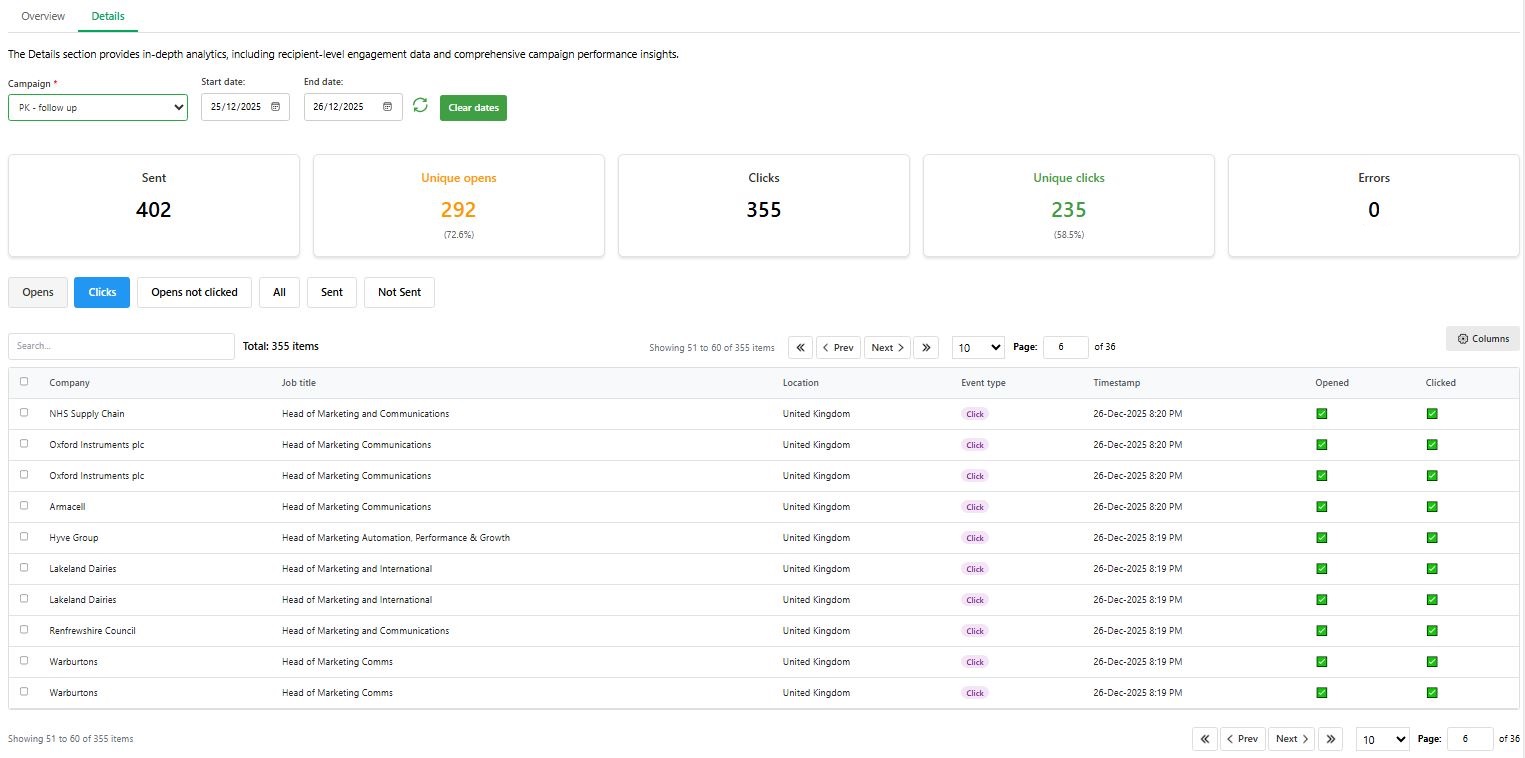
Here you can see each contact and their interaction. The table shows such information as Contact name, Email address, Company, Job title, Location, Event type (Open, Click), Timestamp (last event date & time), and others.
Click on the Opens button to filter by all contacts that opened your email, the Clicks button to show all the clicks, Opens not clicked, All, and Sent.
You can create ‘segments’ of the ones you are interested in to send follow-up emails later.
Celebrating your success!
Don’t forget to celebrate your wins! If your campaign performed well, that’s a direct result of your effort combined with PitchKraft’s technology. Many users see substantially higher reply rates when using PitchKraft compared to generic outreach, and you might already be experiencing that. Share the success with your team. Let us know. We love testimonials and could feature your story to help boost your brand.
By now, you’ve learned how to manage contacts, create blueprints, generate personalized emails, send them, and review engagement. You’re equipped to run sophisticated email campaigns that feel warm and fantastically hyper-personal to your future customers.
Tips and tricks
Celebrate strong results with your team and reuse high-performing campaigns as proven templates for future outreach.
Explore Mail support topics.
← All Mail guides
