
 Skip to content
 Generate, preview, and customize AI-powered personalized emails at scale.
Now we can create the subject and body of actual emails, in bulk. Here we can view the generated hyper-personalized emails created using the chosen blueprint for your campaign and for the list/segment of contacts you have chosen for your campaign. You can also move between the emails, view the emails in mobile/tablet/desktop view, regenerate and edit individual emails, overwrite emails, and download the emails into a spreadsheet to import into your mailing software or CRM.
If you prefer, use PitchKraft to send the emails. Within the kraft emails section you can send the emails, an individual email or all, one-by-one. You can move to the mail section of PitchKraft if you prefer to set up a schedule to send the emails.
Click on the generate button to start creating the emails. If you want to skip the contacts that have already had emails created then don’t check the Overwrite check box. If you do check that box then all emails will be regenerated from the contact that is currently showing. All the emails, body and subject, are automatically saved. You will see a running commentary in the output box, showing which contact PitchKraft is working on. As the email is generated, the krafted label will change to show the date and time the email was generated.
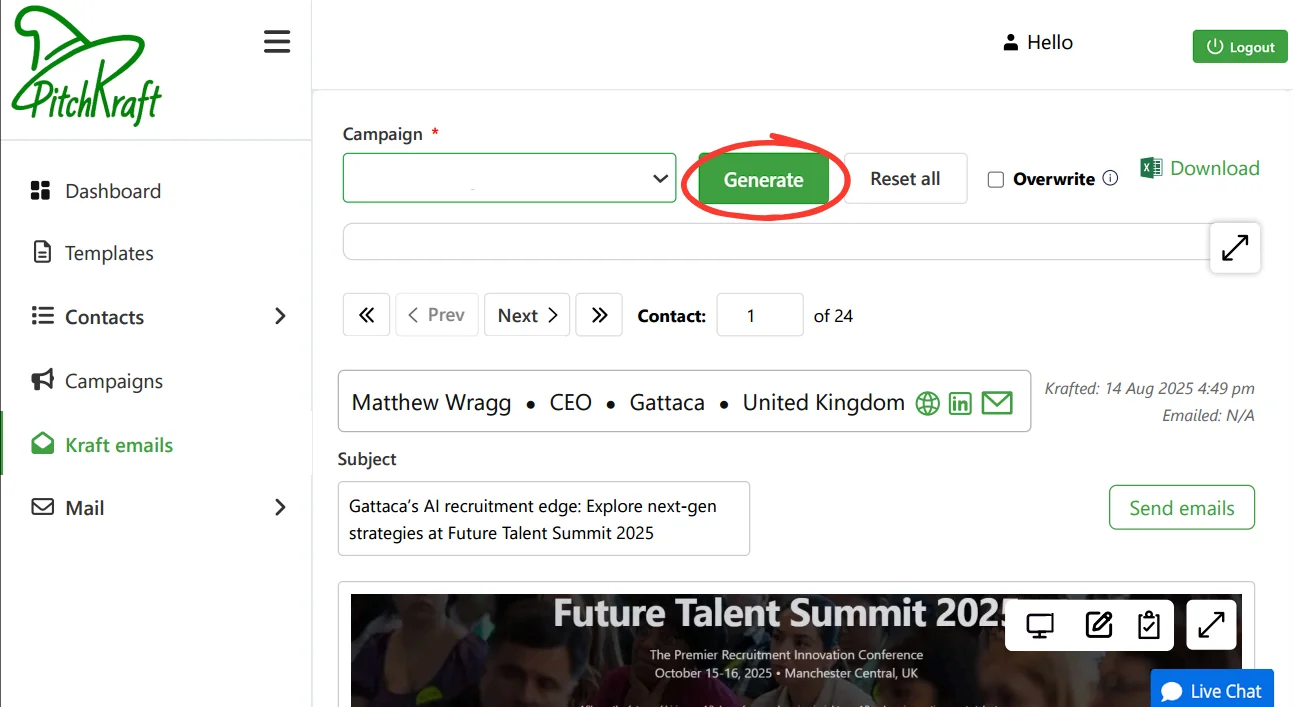
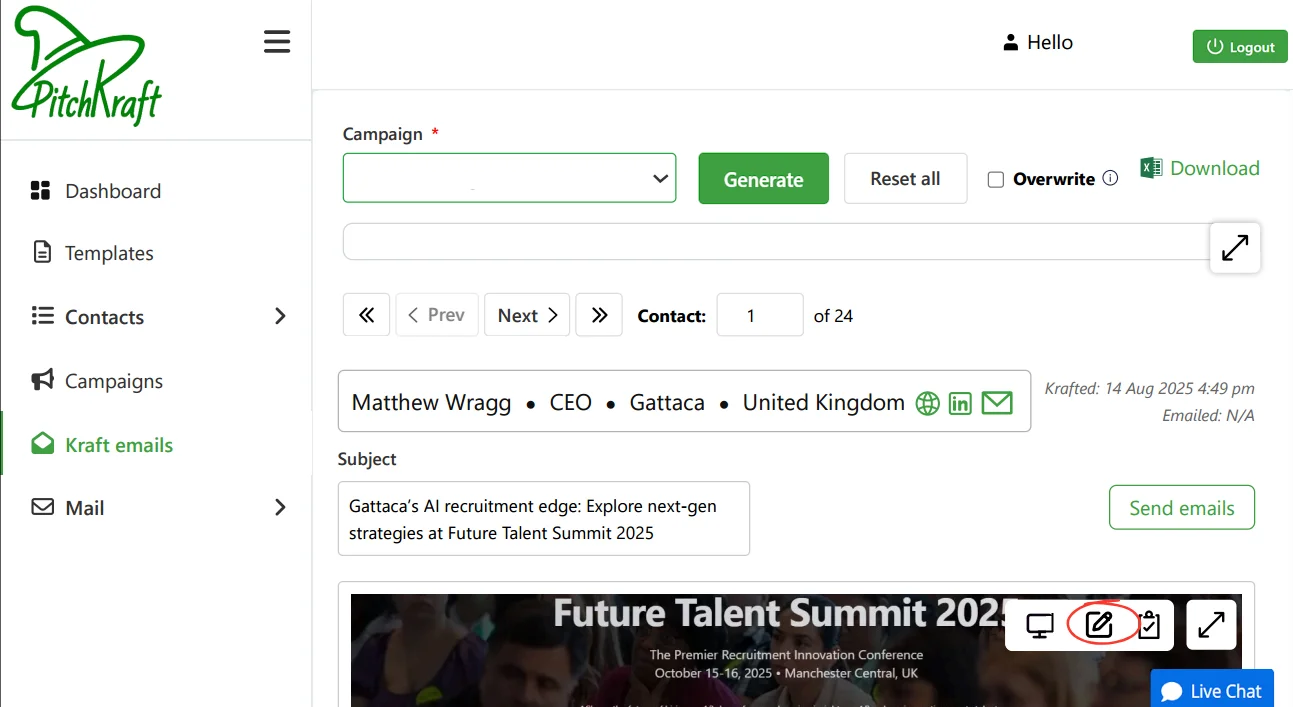
If you would like to regenerate an individual email or edit it manually, then click on the relevant button located at the top right of the email.
If you click on the Stop button, then the process of email generation will stop after completing the email that is currently being created. If you close the browser, the emails will also stop being generated.
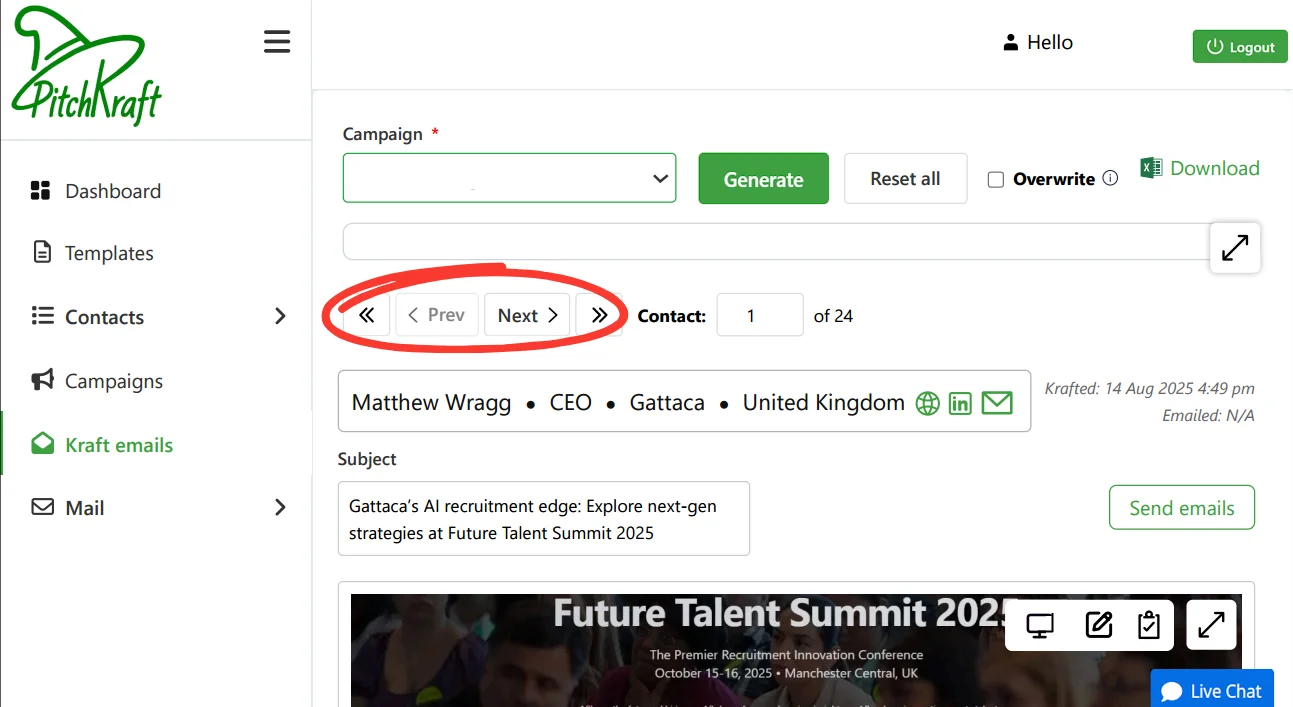
As the emails are being created, you can review the output. You can use the navigation tools to move through the personalized emails and this will not interrupt the process. When a new email is created, it will navigate back to that email.
Use the overwrite option carefully leave it off to preserve reviewed emails, and enable it only when you want a full refresh. Always skim a few generated emails during the run to catch tone or hook issues early.
Navigate between contacts using the navigation buttons. You can fast forward by typing a number in the contact box — type 56 to go to the 56th contact. The contact details change as you move along, and as the emails are generated, showing the contact’s name, job title, company, location, company website, contact’s LinkedIn, and email address.
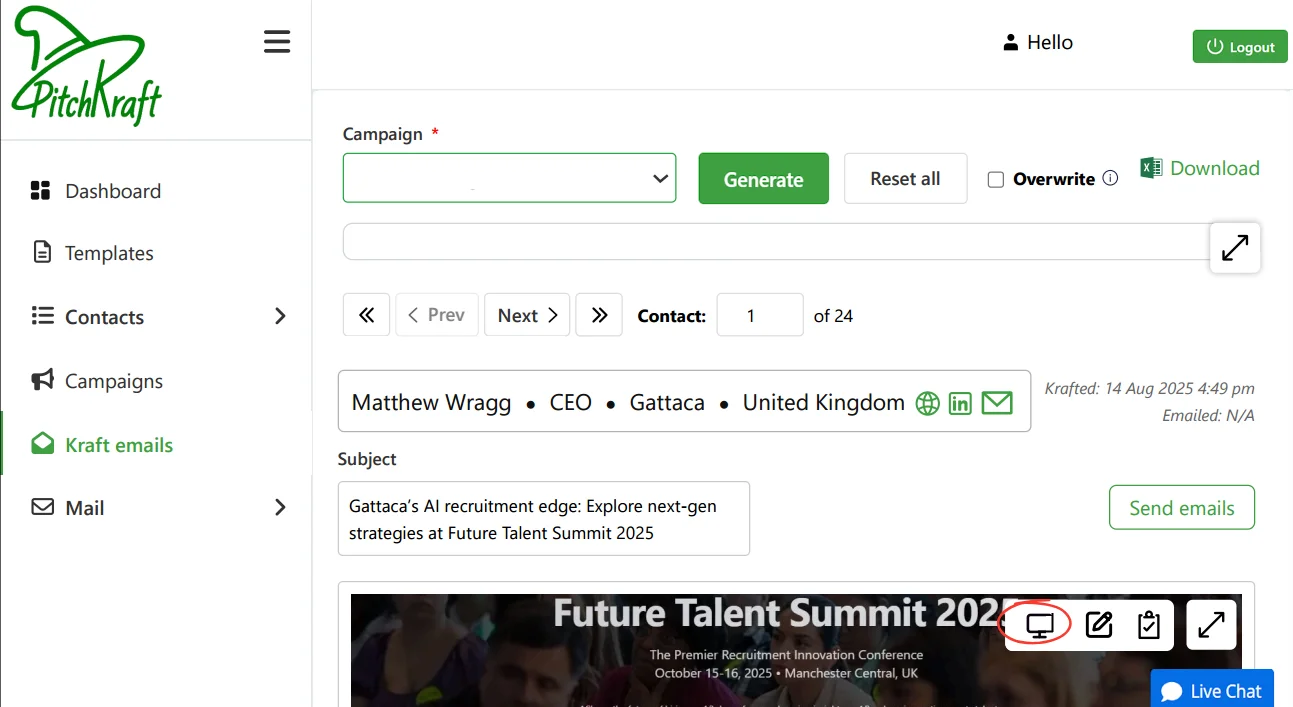
See how the emails will look on a mobile device, a tablet, or a laptop/desktop by selecting the relevant button located at the top right of the email.
To download all the generated emails into a spreadsheet (to use in your CRM or email software), along with subject and pre-headers, click on the download button. You can also copy the generated email into the clipboard. This button is located on the top right of the email area.
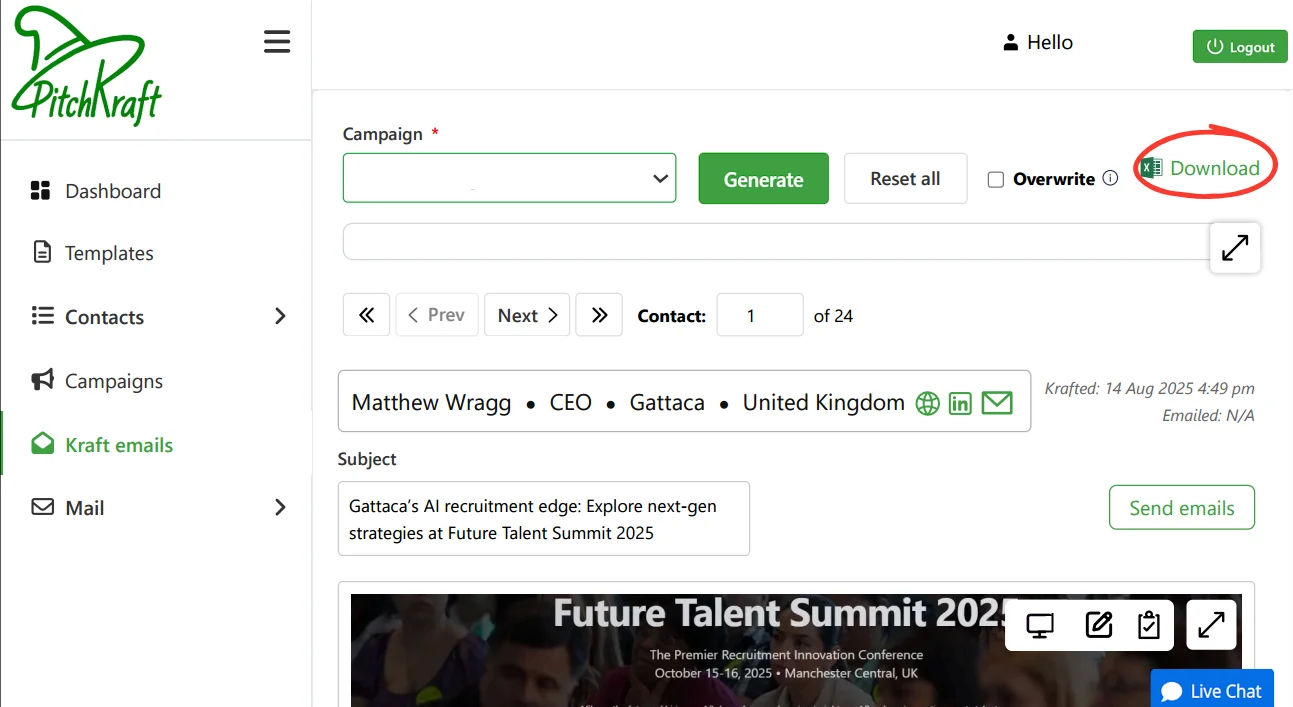
Jump quickly to any contact by typing its number instead of clicking through one by one. Always preview emails in mobile view first if it reads well there, it will usually look great everywhere.
PitchKraft is clever enough to save research related to each company so, if you generate an email for someone in the same company later, it will save time by using that same research (it will still generate an entirely unique personalized email). If you want to clear that memory (maybe you have changed the Hook — the research into the prospect that ties in with your email theme) then click on the reset all button.
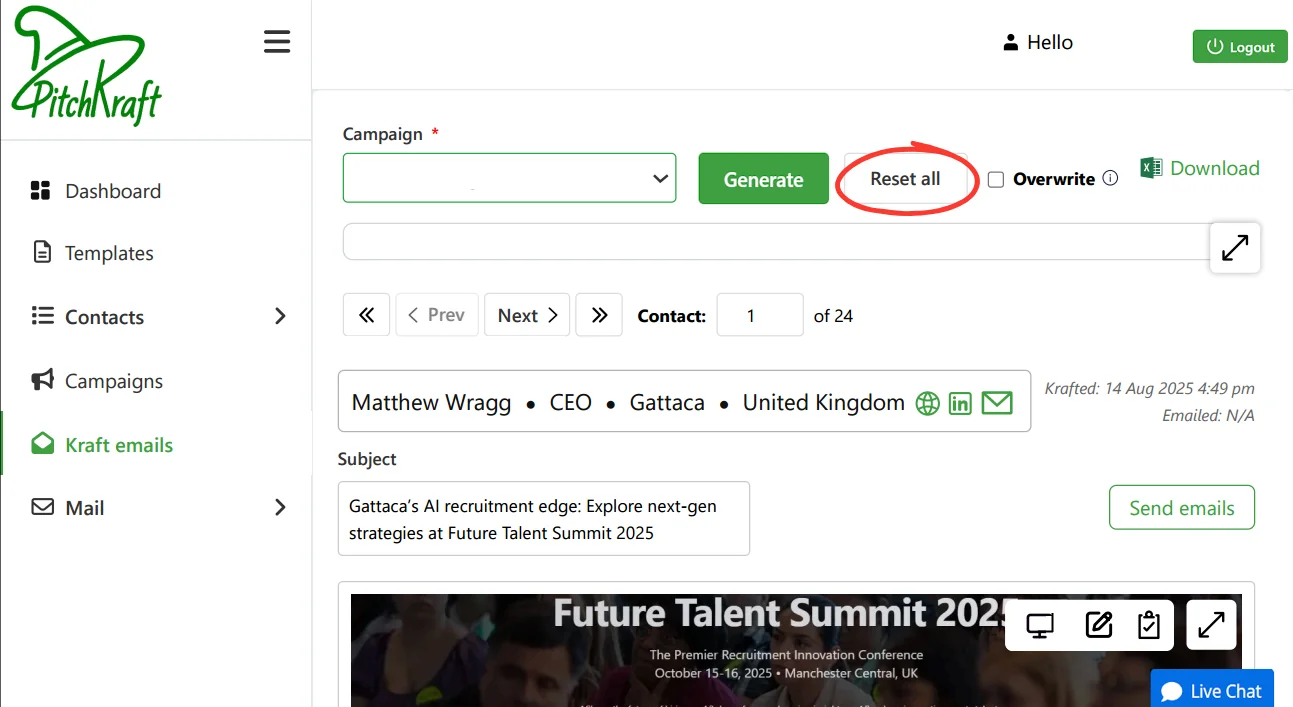
Reset research memory when you change your hook or campaign focus. This forces fresh research, ensuring new insights are used while still keeping each generated email fully unique.
If the research on the hook didn’t bring anything back, then the email might read more generic (still completely unique, though). If there is no information available then PitchKraft can’t invent it — and you wouldn’t want it to. If it happens often, then you might want to think about making the hook and the hook search terms that you have created in the blueprint builder broader or targeted differently.
Feel free to contact us for our assistance in this.